
How to Set Up Microsoft Azure | A Step-by-Step Visual Guide from Account Registration to Portal Launch
Published on May 6, 2026
This article is the English translation of the Japanese original.

For those looking to use Microsoft Azure to develop or launch apps and internal business systems, this guide walks you through the entire process — from creating an account to launching the Azure Portal — with screenshots at every step. Getting your account set up before hiring an engineer will help your project get off to a smooth start.
What Is Azure?
Microsoft Azure is a cloud IT infrastructure service provided by Microsoft. It is a major cloud platform alongside AWS (Amazon Web Services) and Google Cloud. Azure is an especially strong choice for companies that already use Microsoft products such as Microsoft 365 or Active Directory internally.
Prerequisites
- A computer with an internet connection
- An email address for registration (you can create a new one)
- A credit card for payment (a free trial period is available)
Step 1: Visit the Azure Official Website
Go to the Azure official website and click the "Start using Azure" button.
 Click "Start using Azure"
Step 2: Select the Free Trial Plan
On the next screen, click the "Try Azure for free" button.
 Select the free trial plan
Step 3: Create a New Microsoft Account
If you don't have a Microsoft account, click "Create" to start the new account registration process.
 Click "Create" to begin new account registration
Step 4: Enter Your Email Address
Enter the email address you want to register and click "Next".
 Enter your email address and click "Next"
Step 5: Enter the Email Verification Code
A verification code will be sent to your registered email address. Enter the code to confirm ownership of your email.
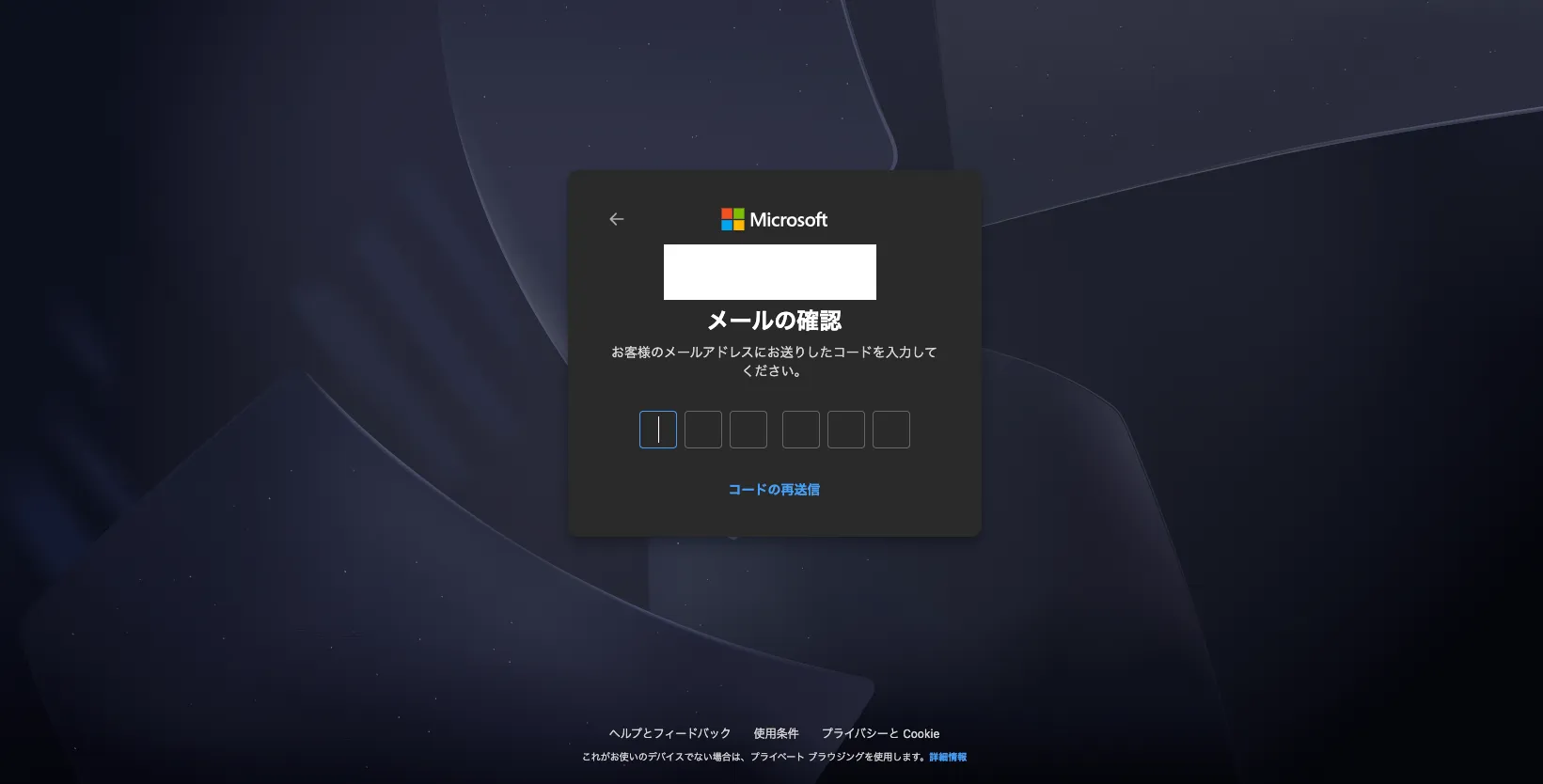 Enter the code received by email to complete verification
Step 6: Enter Your Region and Date of Birth
Select your region, enter your date of birth, and click "Next".
 Enter your region and date of birth, then click "Next"
Step 7: Enter Your Name
Enter your first and last name, then click "Next".
 Enter your name and click "Next"
Step 8: Set Up a Passkey
A passkey creation screen will appear. Click "OK" to complete the setup.
 Click "OK" on the passkey creation confirmation screen
Step 9: Enter Additional Account Information
Continue entering any additional information requested (such as your phone number), following the on-screen instructions.
 Enter additional details as prompted on screen
Step 10: Enter Payment Information
Enter your credit card details to prepare for charges after the free trial ends (no charges apply during the free period).
 Enter your credit card information
Step 11: Confirm and Proceed
Review your details and click "Next" to continue.
 Click "Next" after confirming your information
Step 12: Don't Panic if You See an Error Screen
An error screen may appear immediately after account creation, but simply reload the page and it will display correctly. You can also access the dashboard directly at portal.azure.com/#home.
Note: This error is cosmetic — your account has been created successfully. A page reload resolves it every time.
 If an error screen appears, simply reload the page
Step 13: Launch the Dashboard
The Azure Portal dashboard will appear. Click "Continue" to begin using Azure.
 Click "Continue" on the dashboard to complete setup
Step 14: Setup Complete
Your Azure account setup and environment configuration are now complete. Well done!
 Setup complete
Summary
Setting up your Azure account and launching the Azure Portal follows these steps:
- Select "Start using Azure" from the official website
- Click "Try Azure for free" to start the free trial plan
- Create a new Microsoft account
- Enter your email address, verification code, profile details, and payment information in order
- Access the dashboard at
portal.azure.com/#homeand click "Continue"
By completing this setup before engaging an engineer, you can get your project off to a smooth and efficient start.
Gallery